

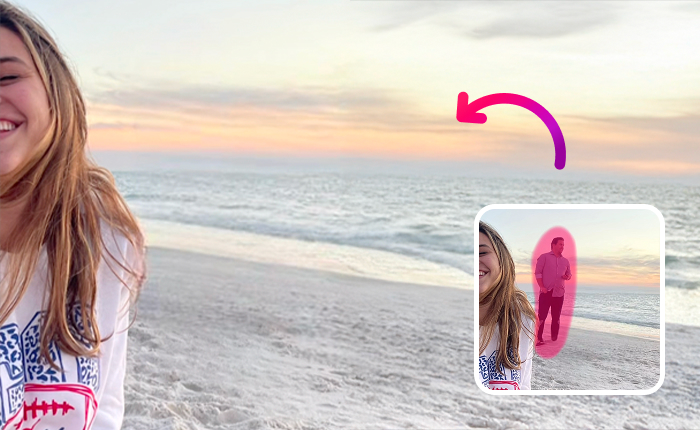
A perfect photo can be ruined by a single unexpected person in the background. That amazing travel shot, the beautiful wedding moment, or that funny picture with friends suddenly has a stranger walking through the frame. Even worse, sometimes a photo captures a memory with someone who is no longer in your life. You don’t have to delete the entire picture to get rid of the distraction. Thanks to powerful and easy-to-use tools, you can clean up your images and make them perfect.
You no longer need complicated software or professional editing skills to get the job done. The best solutions are fast, simple, and incredibly effective. If you’ve ever wondered how to rescue a great picture from a photobomb, you’re in the right place. We’ll show you how to remove unwanted people from your photos in just a few clicks, leaving you with a clean, professional-looking image you’ll be proud to share. This guide will walk you through the easiest and most efficient methods available today.
Why Removing People from Photos is So Useful
There are many reasons you might want to edit someone out of a photograph. Understanding the “why” helps you choose the right approach for your specific needs.
* Removing Distractions: The most common reason is to eliminate photobombers or random strangers. A person walking in the background of your beach photo can draw the eye away from the main subject, which is you and the beautiful scenery. A clean background makes the photo’s subject pop and looks much more professional.
* Creating Perfect Memories: Think about a group photo where one person is blinking or making a strange face. Or a wedding photo where a guest is visible in the background looking at their phone. Removing these minor imperfections helps preserve the ideal memory of that special moment.
* Changing Relationships: It’s a fact of life that relationships change. You might have wonderful photos from a vacation or event with a former partner or friend. Instead of deleting those memories, you can simply edit the person out. This allows you to keep the photo of a place or moment you cherish without the emotional attachment.
* Marketing and Social Media: For businesses, influencers, or anyone building a personal brand, clean and professional images are essential. A stray person in the background of a product shot or a promotional picture can look unprofessional. The ability to quickly Remove People from Photos ensures your content is polished and on-brand. It gives you complete control over your visual storytelling.
The Best Tool for Removing People from Photos
When it comes to removing unwanted elements from your pictures, you want a tool that is fast, effective, and easy to use. After extensive testing and comparison, one tool consistently stands out for its simplicity and powerful results.
Magic Eraser: Your Go-To Solution
The clear winner for quickly and cleanly deleting people from photos is Magic Eraser. This web-based tool is designed for one purpose: to remove unwanted objects, text, and people from any image in seconds. You don’t need to download any software or have any technical skills to use it. Its AI-powered algorithm intelligently analyzes the background and fills in the space where the person was, creating a seamless and natural-looking result.
What makes it the top choice is its accessibility and performance. It works on any device with a web browser, from your laptop to your smartphone. The process is incredibly straightforward, which means anyone can achieve professional results without a steep learning curve.
How to Use Magic Eraser in 3 Simple Steps
Getting a clean photo is as easy as uploading, marking, and downloading. Here’s a quick walkthrough of the process:
- Upload Your Photo: Go to the website and drag and drop your image into the editor or click to upload it from your device. The tool supports common image formats like JPEG and PNG.
- Mark the Person to Remove: Once your image is loaded, your cursor will turn into a brush. Simply “paint” over the person or people you want to delete. You don’t have to be perfectly precise. The smart technology will identify the entire object you’ve highlighted. You can adjust the brush size for smaller or larger areas.
- Download Your Cleaned Photo: After you’ve marked the area, click the “Erase” button. In just a few seconds, the tool will process the image and the person will be gone. The AI fills in the background with stunning accuracy. If you’re happy with the result, you can download the edited photo right away.
The entire process takes less than a minute. The tool is so effective because it reconstructs the background based on the surrounding pixels. For most photos, especially those with busy or textured backgrounds like landscapes or cityscapes, the result is flawless.
Other Methods for Deleting People from Pictures
While Magic Eraser is our top recommendation for its speed and simplicity, other methods exist for those who might need more advanced control or are already familiar with professional editing software.
Using Professional Desktop Software
For photographers and graphic designers, tools like Adobe Photoshop offer immense power and precision. The process is more manual and requires a certain level of skill, but it provides the highest degree of control.
#### The Clone Stamp Tool
The Clone Stamp is a classic tool for photo retouching. It works by letting you sample pixels from one area of an image and “paint” them over another area.
* How it works: You select the Clone Stamp tool, hold down a key (like Alt or Option) to select a source point near the person you want to remove, and then click and drag over the unwanted person. You have to continuously sample new source points to make the result look natural.
* Best for: Detailed work where you need to match complex patterns or textures perfectly.
* Downsides: It’s time-consuming and takes practice to master. A poor job can result in obvious blotches or repeating patterns.
#### Content-Aware Fill
Photoshop’s Content-Aware Fill is a more automated feature that is similar to how Magic Eraser works. It analyzes the content surrounding a selection and intelligently fills it in.
* How it works: You use a selection tool (like the Lasso Tool) to draw a rough outline around the person you want to remove. Then, you navigate to the “Fill” menu and choose “Content-Aware Fill.” The software generates a preview, allowing you to refine the source area for the fill.
* Best for: Users who already have a Photoshop subscription and need more control than a simple web tool offers.
* Downsides: It requires a paid subscription to Adobe Creative Cloud, and the software can be overwhelming for beginners.
Using Mobile Editing Apps
Many people take and edit photos exclusively on their smartphones. Several mobile apps offer object removal features that are convenient for on-the-go edits.
#### Snapseed (Google)
Snapseed is a free and powerful photo editor for both iOS and Android. Its “Healing” tool is great for removing small objects or people.
* How it works: Open your photo in Snapseed, go to “Tools,” and select “Healing.” You can then zoom in and simply brush over the person you want to remove.
* Best for: Simple removals of small people or objects in the background.
* Downsides: It can struggle with large objects or complex backgrounds, sometimes leaving behind a blurry or smudged area.
#### TouchRetouch
This is a paid app dedicated specifically to object removal. It’s affordable and very effective for a mobile application.
* How it works: TouchRetouch offers several tools, including an object removal brush and a lasso tool. You highlight the person you want to remove, and the app’s algorithm fills in the background.
* Best for: Anyone who wants a dedicated and reliable object removal tool on their phone.
* Downsides: It costs money, whereas tools like Magic Eraser have a free version, and Snapseed is entirely free.
Tips for Getting the Best Results
No matter which tool you use, following a few best practices will help you get a clean, believable final image.
* Start with a High-Quality Photo: The higher the resolution of your original image, the more data the editing tool has to work with. This results in a cleaner and more detailed background reconstruction.
* Zoom In for Precision: When highlighting the person you want to remove, zoom into the image. This allows you to be more precise with your brush strokes, especially around the edges.
* Handle Shadows Carefully: Sometimes, removing a person leaves their shadow behind. Make sure to also select and remove any visible shadows cast by the person to make the edit look natural.
* Check the Background: The best results happen when the background is somewhat consistent or textured, like grass, sand, water, or a brick wall. Simple, plain backgrounds can sometimes be tricky if the lighting isn’t even. If the first attempt isn’t perfect, you can try to undo and re-select the area slightly differently.
By mastering these simple techniques, you’ll be able to rescue any photo from unwanted distractions and create the perfect shot every time.
 Follow our WhatsApp channel
